Knowledge base
Sign in
Categories
Download
ODARING
SQL ACCOUNT
SQL ACCOUNT E-INVOICE
SQL Payroll - HRMS
SQL POS
SQL POS E-INVOICE
ZEONIQ E-INVOICE
ZEONIQ MEMBER
ZEONIQ POS
ZEONIQ POS iPAD
ZEONIQ POS XPRESS
ZEONIQ RMS
MAINTAIN USER
SQL ACCOUNT
MAINTAIN USER
Maintain User
1. Tools | Maintain User
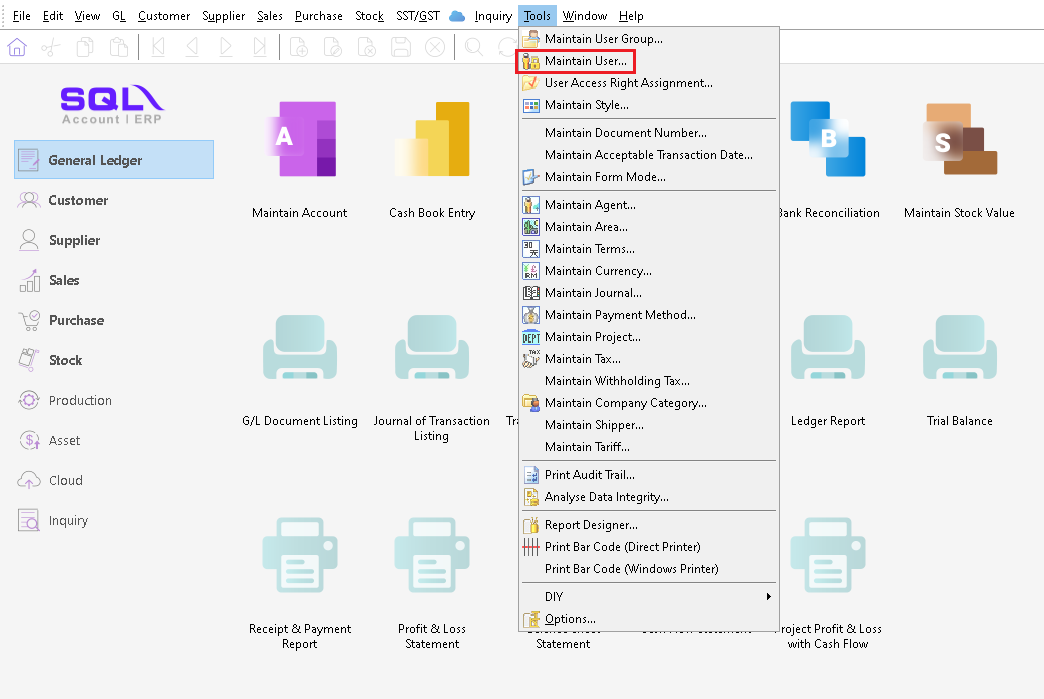
2. Create new user
2.1. Click new
2.2. After keying in all details, assign the user to a desired user group, then save.
3. Assign access rights
3.1. Click into a user | More | Access Control
3.2.
Access Control List
Execute:
Allow the user to
open
and
run functions
.
New:
C
reate
a new entry.
Edit:
M
ake changes
to an existing entry.
Delete:
R
emove
an entry.
Process:
N/A
for SQL Accounting. Only applies to SQL Payroll.
Print:
P
rint a
report.
Preview:
V
iew a
report
without printing
.
Export:
S
ave
a
report
into a file
(Excel, PDF, CSV).
Grant:
Give selected access rights to the user.
Revoke:
Remove selected access rights from the user.
Grant All:
Give all access rights to the user.
Revoke All:
Remove all access rights from the user.
3.3.
User Access Right
For example, I want sales agent 'George' to have access to SOME sales-related functions only, so I need to:
a) Revoke all access rights if it's a new user.
b) Select the functions that the user is allowed to access.
c) Click grant then s
ave it.
3.4 Reports
For reports, you can assign the user to view and use certain reports only. Same steps as User Access Right (3.3).
4.
Copy access rights to other users
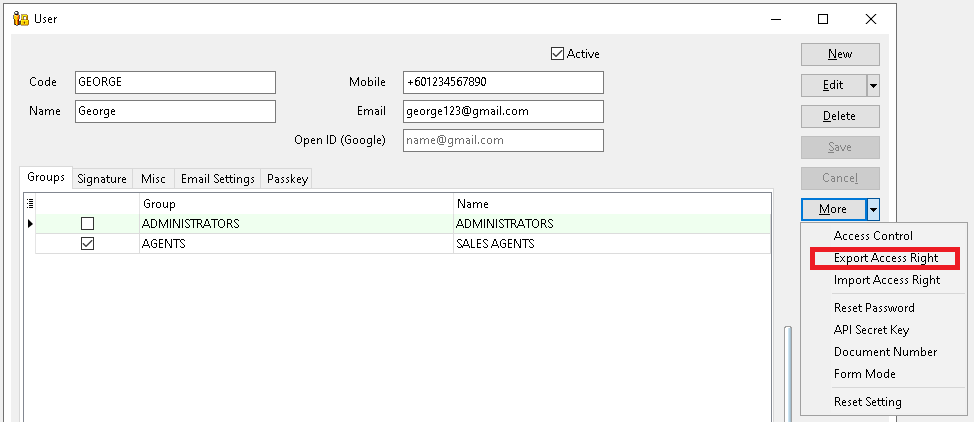
4.1 Open the user you wish to export access rights. Click More
->
Export Access Rights.
4.2 Save it into a file.
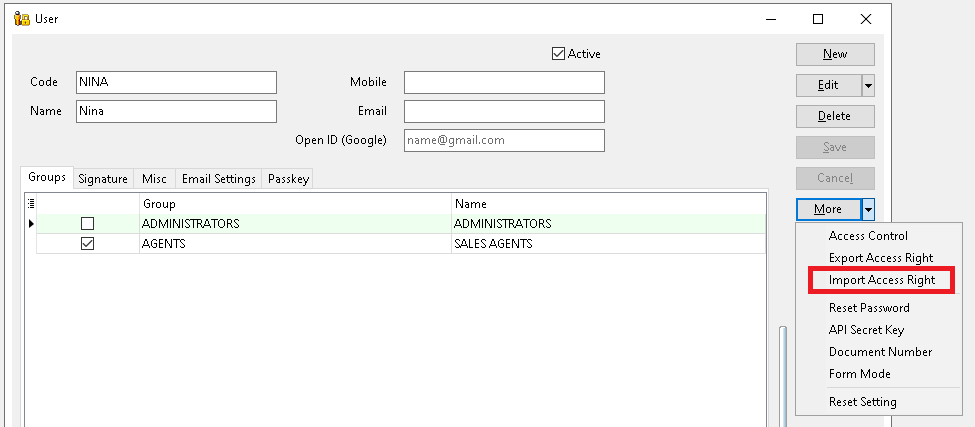
4.3 Open the user you wish to copy access rights to. Click More
->
Import Access Rights.
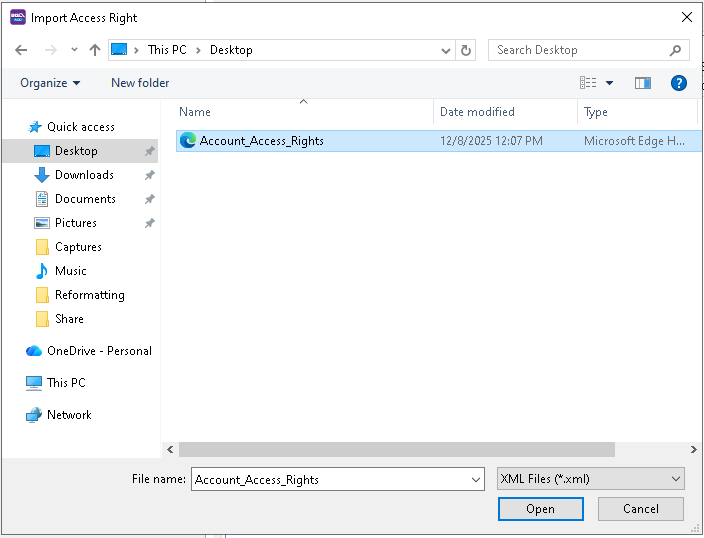
4.4 Select the file you saved in step 4.2.
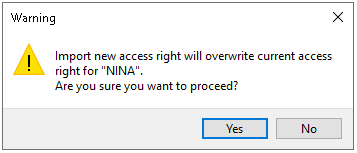
4.5 Click Yes.
Was this article helpful?
Yes
No
Delete?
Are you sure? You won't be able to undo this action!