Categories
BANK ACCOUNT DETAIL
ADD BANK ACCOUNT
1. SALES | INVOICE

2. Double Click the invoice you want

3. Inside sales invoice, click preview
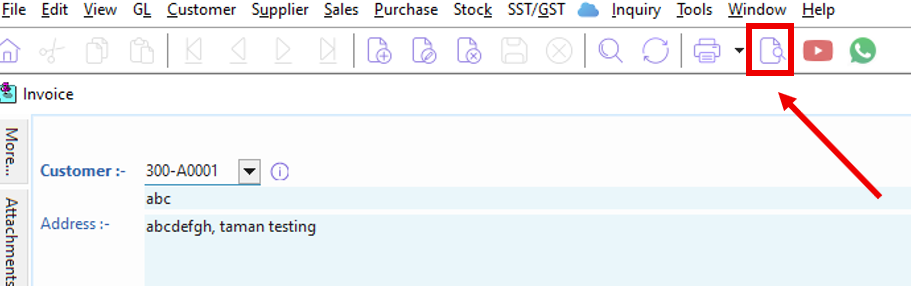
4. Choose the report you want to add in Bank Account Detail
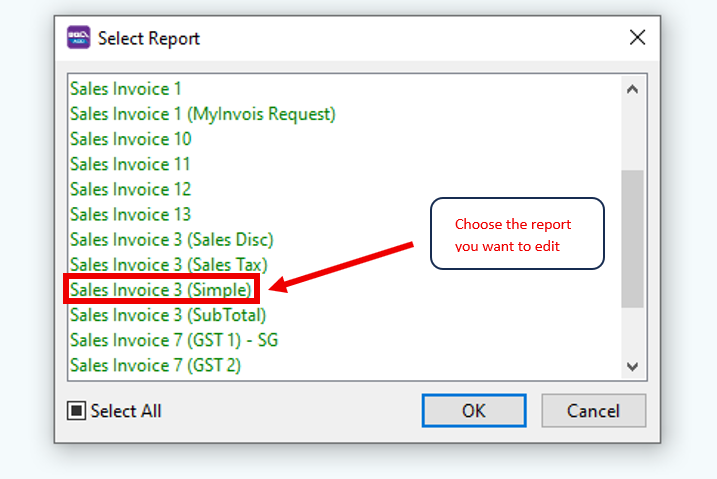
5. Look for the name of the report you chose at the bottom left (Highlighted in blue) and click it

6. Inside the report builder, look at the tools available

7. Find RichText and click it

8. Place the RichText at the Detail/Group Footer

9. Double click the RichText Box and key in your bank account detail

10.
The display after you save the RichText

11. Remember to save before you quit the report builder
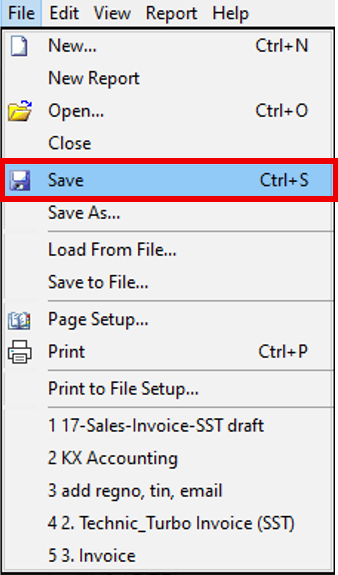
12. Repeat step 3 and 4 again to check your bank account detail

13. Repeat from step 3 to 12 if you need to add in bank account detail for other report
**When to choose memo, richtext or label for your bank account detail
Label: Use when the text is short and fixed
Memo: Use when the text can be long and must wrap automatically (cannot customize as the font, size and bold are fixed for each letter)
RichText: Use when you need complex formatting (can customize as the font, size and bold are not fixed for each letter)
You may refer to this video: