Categories
QR CODE FOR E-INVOICE
ADD QR CODE FOR E-INVOICE
1. SALES | INVOICE
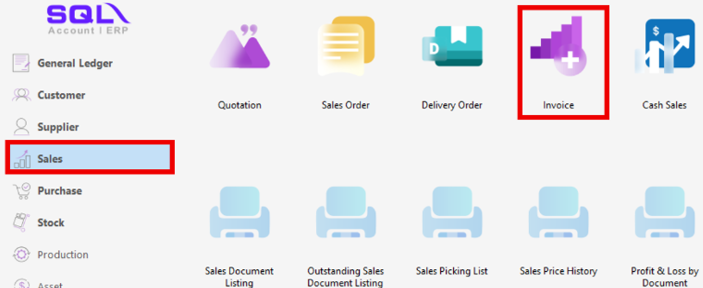
2. Double Click the invoice you want

3. Inside the sales invoice, click preview
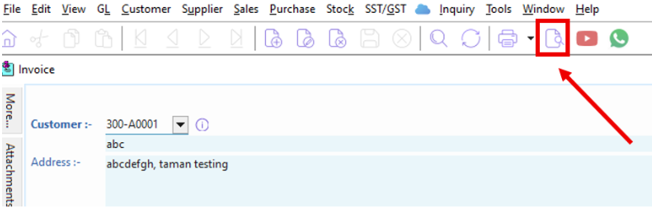
4. Choose the report you want to add in QR Code for E-Invoice

5. Look for the name of the report you chose at the bottom left (Highlighted in blue)

6. Inside the report builder, look at the tools available

7. Find DB2DBarCode and click it

8. Place the DB2DBarCode at the Detail/Group Footer

9. After you place the DB2DBarCode at the Detail/Group Footer, check this column below the toolbox

10. Press the right column and look for IBRM_ValidationLink
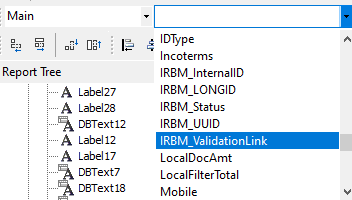
11. Now the default will be changed into this
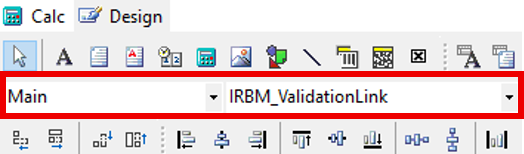
12. Now you can proceed to change the barcode design to QRCode by clicking the DB2DBarcode
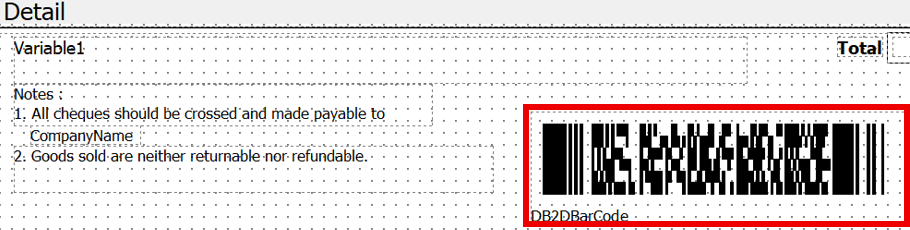
13. At the left side of the report builder, look for the properties

14. Look for BarCode -> BarCodeType
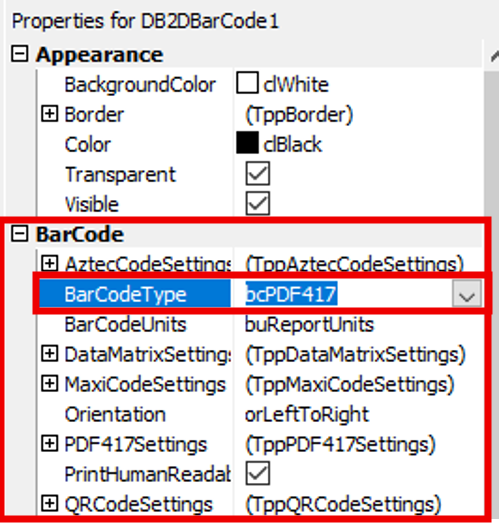
15. click the button and choose bcQRCode

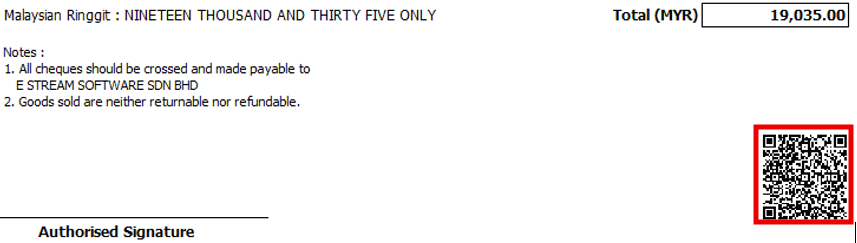
16. Now you have the QRCode for E-Invoice at the detail/footer area

17. If you want to remove the DB2DBarCode label, you can remove the name by unticking (Barcode -> PrintHumanReadable)

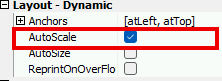
18. Change the layout to Autoscale so that the QRCode will autoscale when you adjust the size
19. Repeat step 3 and 4 again to check your QRCode for E-Invoice
19. Repeat from step 3 to 19 if you need to add in bank account detail for other report
You may refer to this video: