Categories
SQL MOBILE CONNECT
SQL MOBILE CONNECT
1.
SQL ACCOUNT SETUP
1.1 HOW TO CREATE SQL MOBILE CONNECT
USER
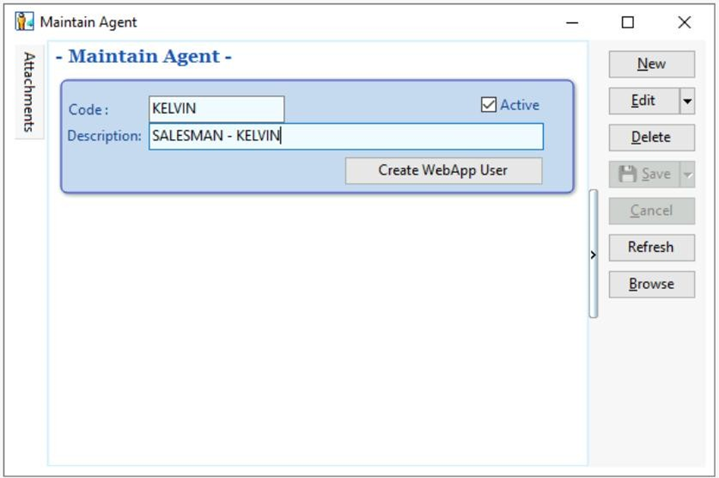
Step 1: Tools | Maintain Agent… | Create New Agent | Save
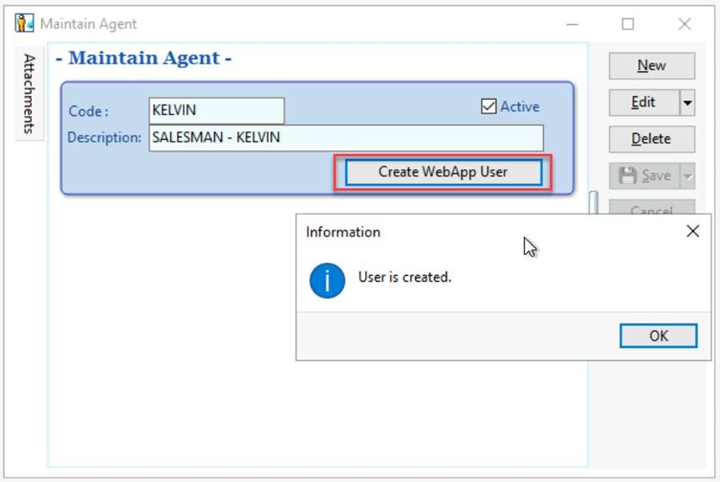
Step 2: Select ‘Create WebApp User’ , then will show one dialog User is created. | Press OK.
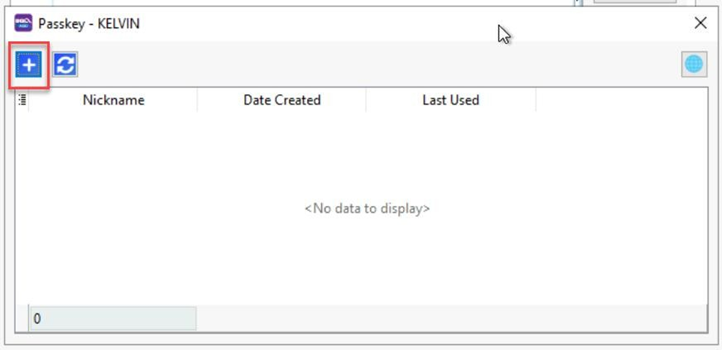
Step 3: Select + Button under Passkey windows
Step 4: Can press the Copy link (Red Box) or QR code shown Send to Salesman for register passkey on their device.

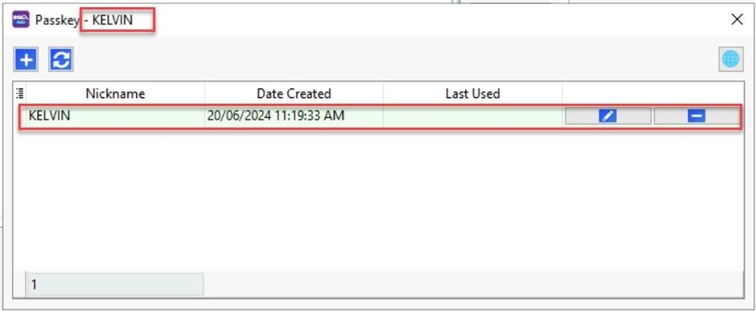
After done registration of passkey on your device, it will show screen below in SQL Account.
Step5: Rename the Nickname for this passkey | Press OK

2.0 SQL MOBILE CONNECT
SETUP
Step1: Press the link or scan the QR code provided.
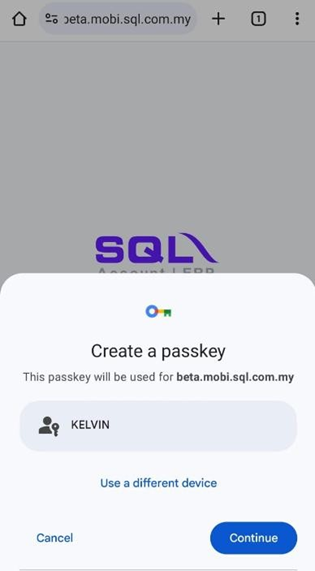
Step2: After press the link or
scan the QR code, will show screen as above for you to register passkey. Then, select ‘Continue’
to proceed.
Step3: After registered passkey successfully, will show the screen below .

You
need to install
the App on your device
- Android > click More > Install
App
- Windows > click Install App
- IOS > Share > Add to Home Screen
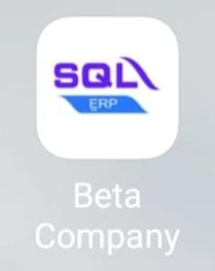
The installed app will appear on your home screen
as shown above.